Images
To create a basic image, we will use the <img> tag. The <img> tag has no closing tag, but it does have a few properties that we’ll go over.

The first property is src, the source of the image. This could be a link to an image hosted on a web server, or one saved within the website document itself. For the purpose of this tutorial, we will assume that there is a folder in the root of the website called images. Inside this folder, there is a JPEG image saved as “duck.jpg”. It’s standard practice to keep file names lowercase and short with no spaces or special characters, but not too short! Simply set the src property to the path to the image.

The next property we will focus on is the alt property. This is the text that gets displayed in the event that the image fails to load with the website. This is also useful for people who may not be able to properly see the image, so that the site is accommodated for people with disabilities.

The title property refers to the text displayed when you hover your mouse over the image for a prolonged period of time. It is a good idea to set this to a short title for the image.

Finally, we have the width and height properties. It is worth noting that those properties must be defined in that exact order, width then height. Otherwise, problems could occur with the image in the webpage. If you only set the width, the height will be automatically set according to the width. For this example, we will be setting width as a percentage, 1000px meaning the image would span across the whole page.

Congrats! Now you have an image displaying on your webpage!

Audio

In order to create an audio player, we must use the <audio> tag and another tag called the <source> tag.

The source tag is used to give the audio tag and various other tags a path to the needed file. Much like the <img> tag, it has an src property, along with a new property called type. You should already know how src works by now, but what’s this type thing? Here, type is declaring the type of file that we are loading into the website. In this case, it’s the audio type of ogg. The text in between the source tag and closing audio tag will display if the audio fails to load.

Thanks to the control property, you can now use the buttons to play the audio. In some browsers, you may even be able to change it’s speed!
Videos
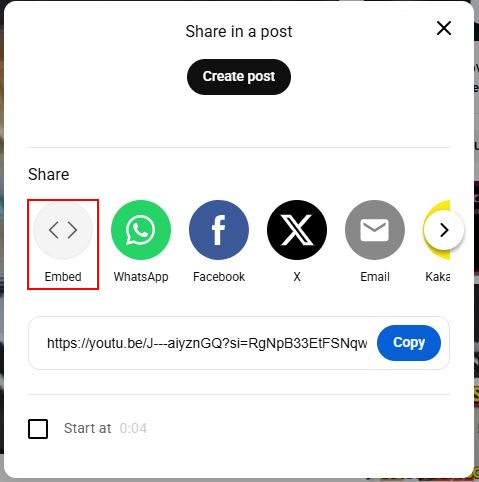
For the purpose of this example we will only be linking videos through YouTube iframe feature. Go to YouTube, and find a video you like. Then, click on Share and select Embed. This will display all the code you need, which can be easily copied by clicking on the Copy text in the lower right hand corner.
 |
 |
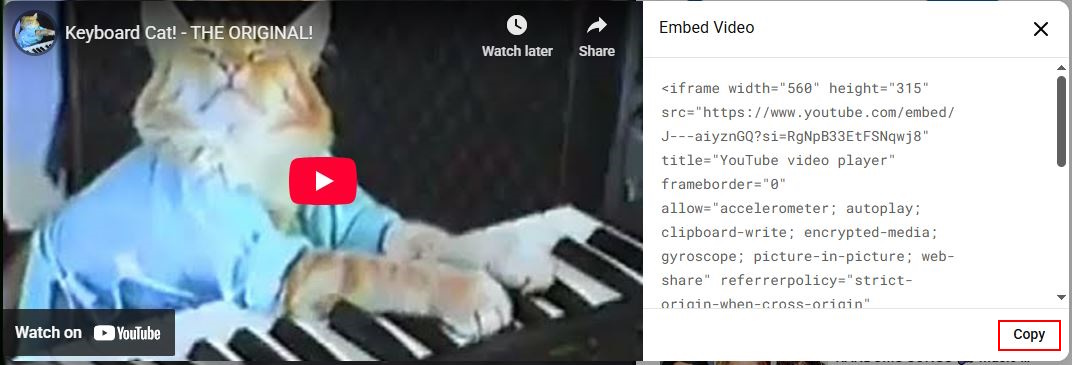 |
Then, simply paste this tag where you would like the video to be in your website, and there you have it!

My website looks kind of bland...?
You may be noticing now that your website, while functional, doesn’t look the best. This is because we are missing one last crucial component of our webpage, CSS.