Notice!
This is a tutorial on how to CREATE a website, not on how to publish one to the World Wide Web! Publishing is a whole other topic that will not be discussed in this guide. I should also point out that it is FREE to create a website! Aside from any resources needed, you can create a website as long as you have a code editor like Notepad++. Some other programs and resources that could be useful are Paint.net (image editor), Audacity (audio editor), and W3Schools (Programming tutorial website). Now, before you start actually creating your website, let’s talk about the basic file structure of a website.
Website File Structure
You may not think of it like this, but websites are files. You may not have direct access to the files of the websites you visit, but websites are stored on the internet as a collection of files under a root folder. Each root folder contains an index.html file, which is the homepage loaded when visiting the website from the World Wide Web. Other files are stored within other folders, as it keeps the website organized and easy to edit for anyone who needs to. So, let’s begin. Start by creating the root folder where you want your website to be stored.
Next, create a few other folders inside the root folder for the sake of organization. Some examples of folders you could make are: images, audio, stylesheets, fonts, etc.. Finally, you may now create the homepage index.html file. This type of file can’t be normally created from the navigation menu on Windows 10, so we need to enable file extensions so we can create one. You can do so by clicking View in the top left of the File Explorer application, and ensuring that the checkbox next to “File name extensions” is ON.

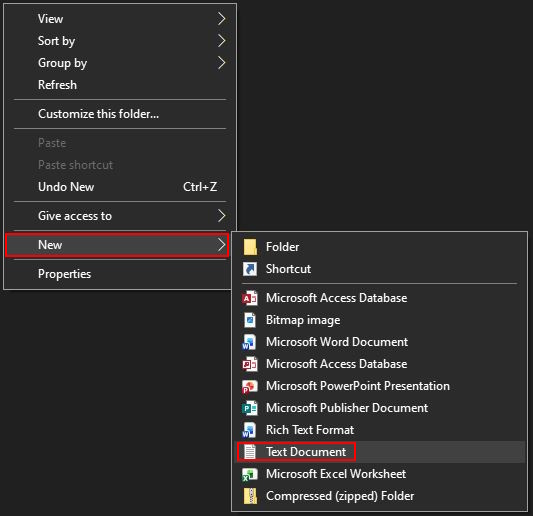
After that, we can convert an empty txt file into an empty html file. Create a new text file in your root folder, and rename it to index.html. Make sure that you change the file extension too!
Now you should be ready to start creating the basic structure of your website using HTML!